
Begin with what happened
Enter the roll sequence and action context. Keep the recorded outcomes as the foundation while choosing tone, stakes and setting.
DM & session
Keep the past rolls.
Connect the story.
Carry a motif forward.

A story around recorded rolls
Build a progression from past events, recurring imagery and witness viewpoints.
Enter the roll sequence and action context. Keep the recorded outcomes as the foundation while choosing tone, stakes and setting.
A motif or callback can connect moments across a session. Use witness interpretation as a viewpoint and decide what fits the scene.

Rise, reversal and recovery
A run of recent rolls can feel like momentum, struggle or recovery. Prepare a three-beat progression with an observed pattern, recurring motif and visible witness reactions.
Keep interpretation separate from fact. Let a detail recur without claiming the dice are due to change or rewriting what the table already decided.
What you can prepare
Refine a readable thread around the moments your table has already seen.
Enter three to forty recorded rolls in chronological order. Set the highest possible roll and describe what the character was doing.
Shape tone, stakes, setting and the character experience. Add established facts and private DM notes to guide the narration.
Look at how the action felt across the recorded sequence. Frame a rise, reversal, struggle or recovery around results that already happened.
Receive a three-part progression with the source rolls, observed pattern, current situation and a prompt for the next story beat.
Choose recurring imagery and how strongly it appears. Revisit a detail that helps the table recognise continuity across events.
Describe who saw the events and how they interpret the streak. Choose whether each suggested impression fits the scene.
Carry a useful detail into campaign notes and later narration. A callback is a story opportunity, not a prediction about the next roll.
Lock sections you want to retain and regenerate selected narrative parts. Edit pattern, motif, witness view or callback independently.
Save through your account, search and reopen threads, rename or delete them, and revisit earlier versions as the campaign develops.
Copy the full DM view, player narration or selected sections. Download a thread as JSON or print the version you choose; review it before sharing.

Roll sequence and narrative framing
Enter three to forty past rolls in order, their range maximum and the action context. Choose tone and add stakes, setting and the character experience.
Refine recurring imagery, who witnessed the action and which details could return later. Review the progression and rebuild selected narrative parts while keeping useful sections.
Quick setup. Deeper preparation.
Keep the source sequence beside the story as you refine its framing.
Enter past rolls, the highest possible roll and the action. Generate a progression, review the framing and refine the pattern, motif, witness view or callback.
Describe character experience, stakes, location and witnesses. Add established facts and private Dungeon Master notes.
Decide how strongly a motif should recur and whether the streak shapes a witness impression. Keep the viewpoint appropriate to the scene.
Lock useful sections, edit the narration and regenerate only what needs another pass. Review the current situation and next-beat prompt.
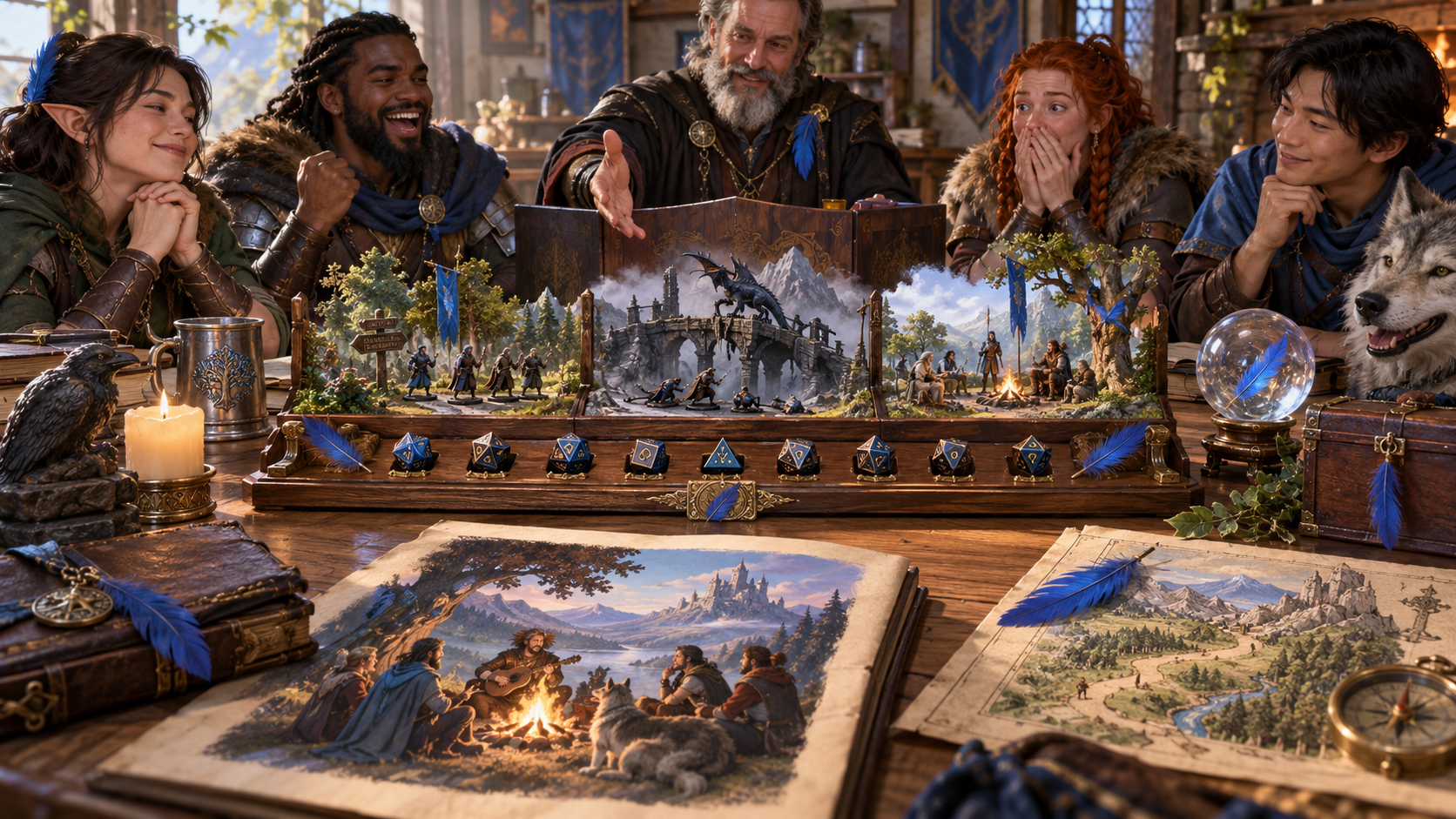
Current situation and future story hooks
Keep a readable current state and a prompt for the next story beat. Carry a motif or witness reaction into later narration and campaign notes when it fits.
The thread adds storytelling around past rolls. A suggested callback does not roll dice, predict luck, change a decided outcome or grant a bonus or penalty.
Saved threads and table references
Reopen earlier versions and select the narration your audience needs.
Save named threads through your account, search and reopen them, and rename or delete them as your campaign develops.
Revisit versions and lock useful sections while trying another narrative detail. Keep the original roll order beside the developing story.
Copy the full DM view, player narration or selected sections. Review private notes and audience material before sharing.
Download the thread as JSON or print the chosen version. Use the narration at the table or carry useful details into campaign notes.
Your desktop and related products
Open your tools through your account and use the thread at the table.
Open your VISINVOKE products through one signed-in Windows desktop workspace.
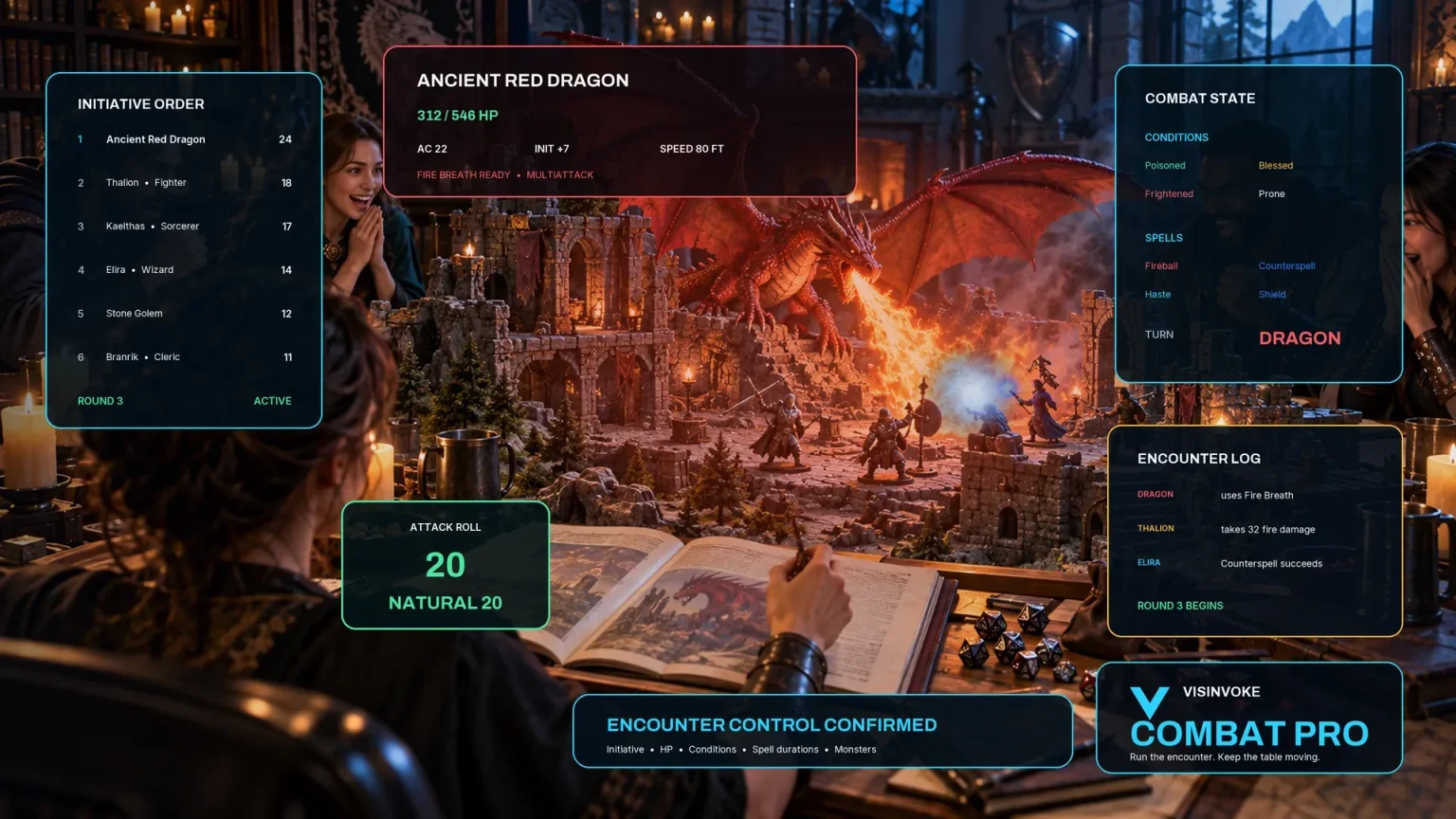
Use the dedicated encounter workspace for combat. Dice Streak Narrator adds story framing around recorded rolls and leaves encounter decisions with your table.
Artwork illustrates fictional story progressions and related products, not application screens.
Questions and answers
Past rolls, narrative framing, saved material and account access at a glance.
Enter three to forty rolls that have already happened, in chronological order. Set the highest possible roll and describe the action context. The narrator frames a story around that recorded sequence.
It brings together the source sequence, observed pattern, three-beat progression, recurring motif, witness interpretation, current state, next-beat prompt and a future callback.
No. The narration concerns past results. Recurring imagery and witness impressions support storytelling; they do not predict future luck, change odds or award bonuses and penalties.
Yes. Edit the thread, lock useful sections and regenerate selected narrative parts such as pattern, motif, witness viewpoint or callback. Keep established campaign facts beside the developing story.
Save named threads through your account, search and reopen them, rename or delete them and revisit versions. Copy the DM view, player narration or selected sections, download JSON or print. Review the audience material before sharing.
Open the Generators collection in Desktop Control Centre on Windows through your VISINVOKE account. Review individual subscription access and current pricing in your account. A free account is separate from paid generator access.
Continue in VISINVOKE
Create a free VISINVOKE account or sign in to your existing account. Get Desktop Control Centre through your account installer page.
Open the Generators collection on Windows. Review current subscription and access details in your account.